Most support tickets should never have been filed. The user just could not find the answer on their own.
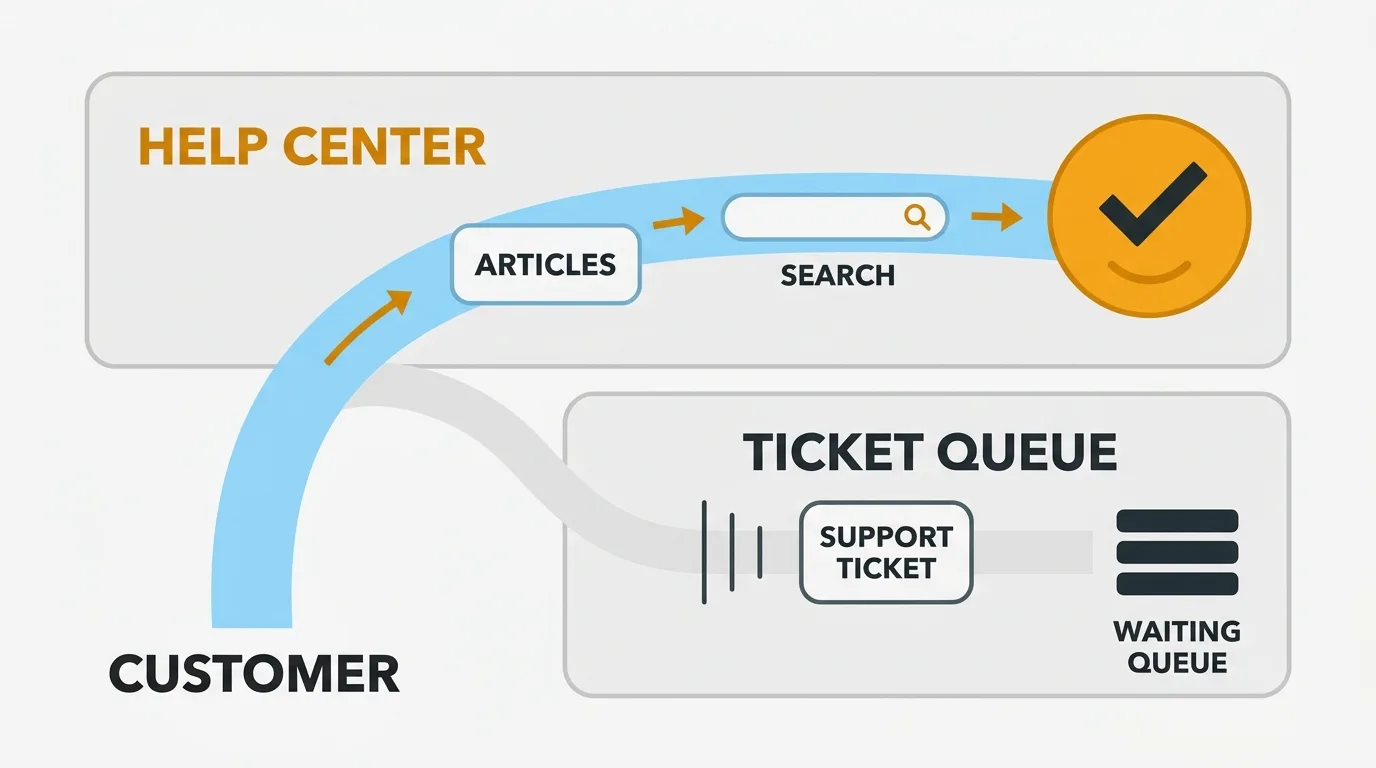
A self-service help center is a searchable collection of articles, guides, and FAQs that lets customers solve problems on their own without contacting support. Build one by covering your top 20 to 30 most-asked questions first, organizing articles by user goal, investing in search, and measuring ticket deflection. The result is fewer tickets, faster time-to-value, and a support team free to handle the problems that need a human.
Research consistently shows that the majority of customers prefer self-service over contacting support. Gartner found that 70% of customers use self-service channels at some point in their resolution journey. Forrester found that web self-service surpassed the phone as the most-used customer service channel — ahead of email, phone, and chat. The numbers are not surprising. Waiting for a support response is slow. Finding the answer yourself is instant.
A well-built help center does not just reduce ticket volume. It improves customer satisfaction, shortens time-to-value for new users, and frees your support team to focus on complex problems that actually require human judgment.
Here is how to build one that works.
What belongs in a help center
Not everything needs an article. A help center is not a documentation dump — it is a curated set of resources that answer the questions users actually ask.
Getting started guides
The highest-impact content you can write. New users who struggle with setup are the most likely to file support tickets and the most likely to churn. A getting started guide that walks through initial configuration, first-time setup, and core workflows prevents both.
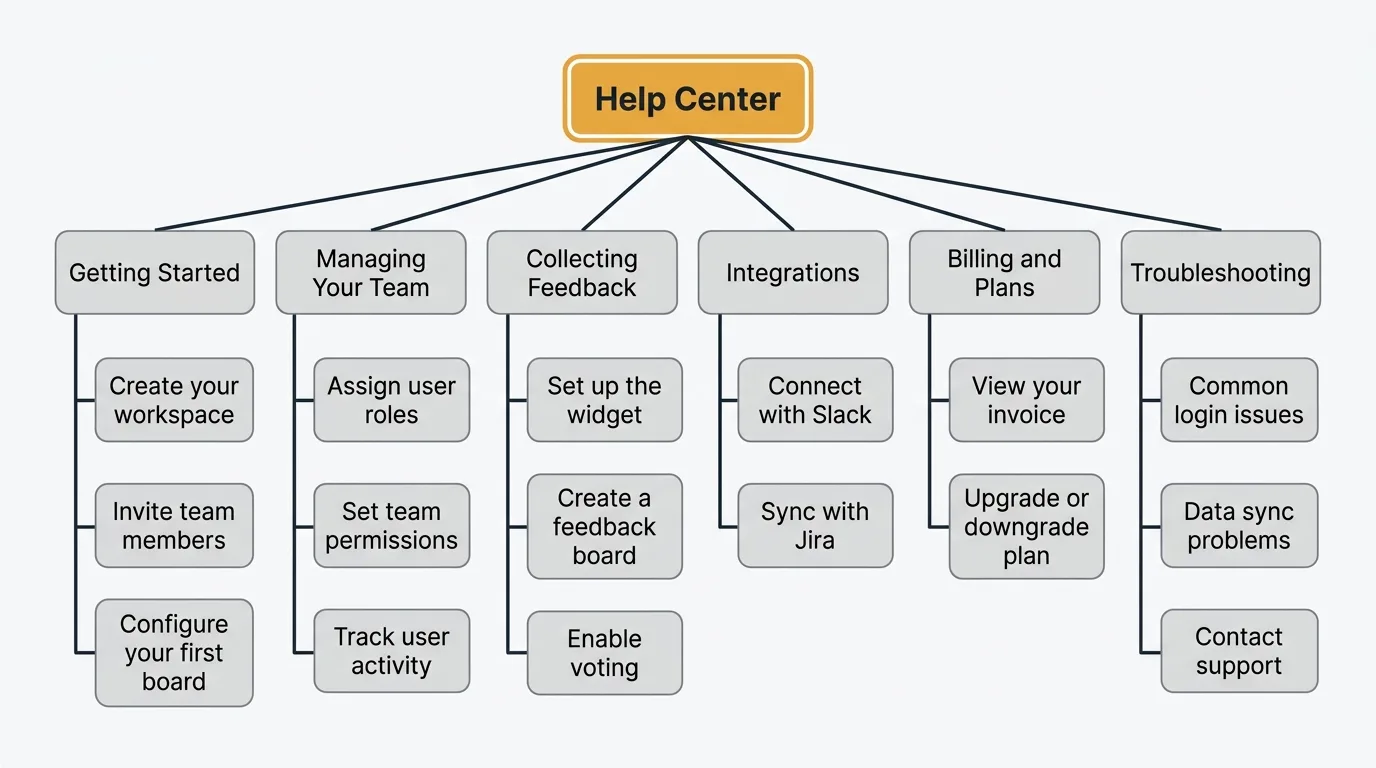
Structure it as a sequence, not a reference. "Step 1: Create your workspace. Step 2: Invite your team. Step 3: Configure your first board." Users should be able to follow it linearly from zero to productive.
Feature documentation
Each major feature gets its own article covering what it does, how to use it, and common configuration options. Keep these focused on practical usage, not marketing language. Users reading help articles have already bought the product — they need instructions, not persuasion.
Include screenshots sparingly. Screenshots break every time you update your UI, and maintaining them is expensive. Use them for complex workflows where text alone is ambiguous. Skip them for simple actions like clicking a button.
Troubleshooting guides
Structured around symptoms, not features. Users do not search for "configure SAML SSO" when SSO is broken. They search for "login not working" or "cannot sign in." Write troubleshooting articles from the user's perspective: start with the symptom, list possible causes, and walk through each fix.
The best troubleshooting guides follow a decision tree format: "If you see error A, try X. If that does not work, check Y. If you see error B instead, the problem is Z."
FAQ and common questions
Short, direct answers to the questions your support team gets asked repeatedly. If your support team answers the same question five times a week, that question belongs in the help center. Review your support ticket data quarterly and convert the most common questions into FAQ entries.
API and developer documentation
If your product has an API, developer docs belong in or adjacent to your help center. Developers are the most self-service-oriented audience — they strongly prefer documentation over support tickets. Include authentication guides, endpoint references, code examples, and error code explanations.
Structuring your help center
Information architecture
Organize articles by user goal, not by product feature. Users do not think in terms of your navigation menu. They think in terms of what they are trying to accomplish.
| Organize by goal | Not by feature |
|---|---|
| "Getting started" | "Dashboard" |
| "Managing your team" | "Settings > Team" |
| "Collecting feedback" | "Widget" |
| "Tracking progress" | "Roadmap" |
Limit your top-level categories to five to seven. More than that and users spend time choosing a category instead of finding their answer. Each category should contain between five and twenty articles. Fewer than five suggests the category is too narrow. More than twenty suggests it needs subcategories.
Search
Search is how most users find help center articles. If your search does not work well, the rest of your help center structure barely matters.
Full-text search is the baseline. Users should be able to search article titles, body text, and headings. Partial matches and typo tolerance matter — users searching for "integation" should still find your integrations article.
Search analytics are as important as search itself. Track what users search for, which searches return no results, and which searches lead to support tickets anyway. No-result searches tell you exactly which articles are missing. Searches that end in support tickets tell you which articles are not good enough.
Navigation
Provide multiple paths to every article:
- Category browsing for users who want to explore
- Search for users who know what they are looking for
- Related articles at the bottom of each page for users who landed on something close but not quite right
- Contextual links from inside your product pointing to relevant help articles
The contextual links are often the highest-performing path. A "Learn more" link next to a confusing setting sends users directly to the explanation they need, in the moment they need it.
Tools for building a help center
The right tool depends on your team size, technical capability, and how tightly you want the help center integrated with the rest of your product.
Dedicated help center platforms
Intercom offers a help center as part of its customer messaging platform. Strong integration with live chat — if a user cannot find their answer in an article, they can start a conversation. Pricing starts at $29/seat/month, and the help center is included in all plans.
Zendesk Guide is Zendesk's knowledge base product. Deep integration with Zendesk Support for ticket deflection analytics. You can see which articles users viewed before filing a ticket. Starts at $55/agent/month on the Suite plan.
HelpScout Docs is a standalone knowledge base with a clean editor and good search. Simpler than Intercom or Zendesk, and priced lower at $22/user/month. A solid choice if you do not need the full customer messaging platform.
Developer-oriented tools
GitBook stores documentation as Markdown in Git repositories. Your engineering team can contribute to the help center using the same workflow they use for code — pull requests, reviews, version control. Free for open-source projects, $8/user/month for teams.
Mintlify generates documentation sites from Markdown or MDX with a developer-friendly editing experience. Strong API documentation features. Free tier available, paid plans from $150/month.
ReadMe focuses on API documentation but works for general help centers too. Interactive API explorer, custom branding, and analytics. Starts at $99/month.
Built-in help center features
Some feedback and product tools include help center functionality alongside their core product. This keeps your knowledge base, feedback boards, and changelog in one place instead of three separate tools.
Quackback lets you publish help articles alongside your feedback boards, public roadmap, and changelog. Users can search for answers, and if they do not find one, submit feedback directly from the same interface. This closes the loop between "I have a question" and "I have a suggestion" without sending users to a different tool.
Quackback is open source (AGPL-3.0) and self-hosted for free, with no vendor seat fee, unlike Intercom, Zendesk, or HelpScout. Quackback Cloud starts at $29/mo billed annually if you would rather not run it yourself. Portal users are free. Quackback also ships an MCP server, so an AI assistant can read your feedback and help content directly. See the docs to set up a board, or compare options on the Quackback vs Canny and Quackback vs Featurebase pages.
Rolling your own
If you have engineering resources and specific requirements that no tool meets, building a custom help center is an option. Most teams use a static site generator (Next.js, Astro, or similar) with Markdown files for content and a search layer like Algolia or Meilisearch.
The trade-off: full control over design and functionality, but you own the maintenance. Search tuning, analytics, editor tooling, and content workflows all become your responsibility.
Writing help center articles that work
Start with the user's problem
Open every article by describing the situation the user is in, not the feature you are about to explain. "You want to add a team member to your workspace" is better than "The Team Management feature allows administrators to invite users."
Use consistent structure
Every article should follow the same pattern so users know what to expect:
- What this article covers — one sentence
- Prerequisites — what the user needs before starting (plan level, permissions, prior configuration)
- Steps — numbered, sequential instructions
- Expected result — what success looks like
- Troubleshooting — common problems and fixes for this specific workflow
Write for scanning
Users do not read help articles from top to bottom. They scan for the step they are stuck on. Use descriptive headings, numbered steps, bold key terms, and short paragraphs. If a user has to read 500 words before reaching the actionable instruction, the article needs restructuring.
Keep articles focused
One article, one topic. "How to invite team members" and "how to set team permissions" are separate articles, even if they are related. Focused articles rank better in search, are easier to maintain, and help users find exactly what they need without wading through irrelevant content.
Measuring help center effectiveness
Ticket deflection rate
The primary metric. Track how many users viewed a help center article and did not file a support ticket afterward. Most help center tools provide this, or you can approximate it by comparing help center traffic to ticket volume over time.
Expect modest deflection in the first few months, improving steadily as your content matures and gaps are filled. Gartner estimates that as much as 40% of live service volume could be resolved in self-service, so there is meaningful headroom to capture.
Search success rate
What percentage of searches lead to a click on an article? Low click rates suggest your articles do not match what users are searching for — either the content is missing or the titles are not descriptive enough.
Article feedback
Add a simple "Was this article helpful?" prompt at the bottom of every article. Track the ratio over time. Articles consistently rated unhelpful need rewriting. This is the simplest quality signal you can get.
Time to resolution
Compare the average time to resolution for issues handled via self-service versus support tickets. Self-service should be significantly faster. If it is not, your help center content may be incomplete or difficult to follow.
Common mistakes
Launching with too little content. A help center with ten articles that does not cover basic workflows is worse than no help center at all. Users learn that your help center does not have what they need and stop checking it. Launch with at least your top 20 most-asked questions covered.
Writing for experts. Your help center audience includes users who signed up yesterday. Avoid jargon, define terms on first use, and do not assume familiarity with your product's concepts. When in doubt, over-explain.
Neglecting maintenance. Help center articles decay. Features change, UI updates, new options get added. Schedule a quarterly review of your top 20 articles to keep them current. Outdated articles are worse than missing articles — they waste the user's time and erode trust.
Hiding the help center. If users cannot find your help center, it does not matter how good it is. Link to it from your product's navigation, your website footer, your onboarding emails, and your support contact page. Make it the first thing users encounter before they file a ticket.
No feedback loop. The best source of help center improvement ideas is your support team. They know which questions come up repeatedly, which articles confuse users, and which topics are missing entirely. Build a process for support agents to flag content gaps.
Try Quackback — open source with a managed cloud option. Start free. Get started | View on GitHub
Frequently asked questions
How many articles do I need to launch a help center?
Aim for 20 to 30 articles covering your most common support questions, getting started workflows, and core feature documentation. Expand from there based on search analytics and ticket patterns. The goal is coverage of the basics, not exhaustive documentation on day one.
How often should I update help center articles?
Review your top articles quarterly and update them whenever you ship UI changes or new features. Set up a process for your support team to flag outdated content in real time. Stale articles are worse than missing articles.
Should my help center be public or gated?
Public. A public help center is indexed by search engines, which brings in organic traffic and helps prospective customers evaluate your product. It also means users can share article links with colleagues. Gate access only for content that contains sensitive implementation details or security-specific configurations.
How do I reduce support tickets with a help center?
Three things: make the help center easy to find (link it everywhere), make search work well (users give up after one failed search), and cover the questions your support team actually receives (review ticket data quarterly). Ticket deflection improves gradually as you fill content gaps.
Can a help center replace live support?
No. A help center handles known, documented problems. Live support handles novel issues, complex configurations, and situations where the user needs judgment, not instructions. The best setup pairs a help center that resolves common questions with a support team focused on problems that require human expertise.

Authored by James Morton
Founder of Quackback. Building open-source feedback tools.
Try Quackback
The open-source feedback platform. Boards, voting, and roadmaps.
Get startedStar on GitHub305