Your feedback tool has hundreds of feature requests, bug reports, and user suggestions. Your AI assistant cannot see any of them. It cannot search your boards, check vote counts, or draft a changelog entry based on what you shipped. The data sits in one system. The AI sits in another. MCP fixes that.
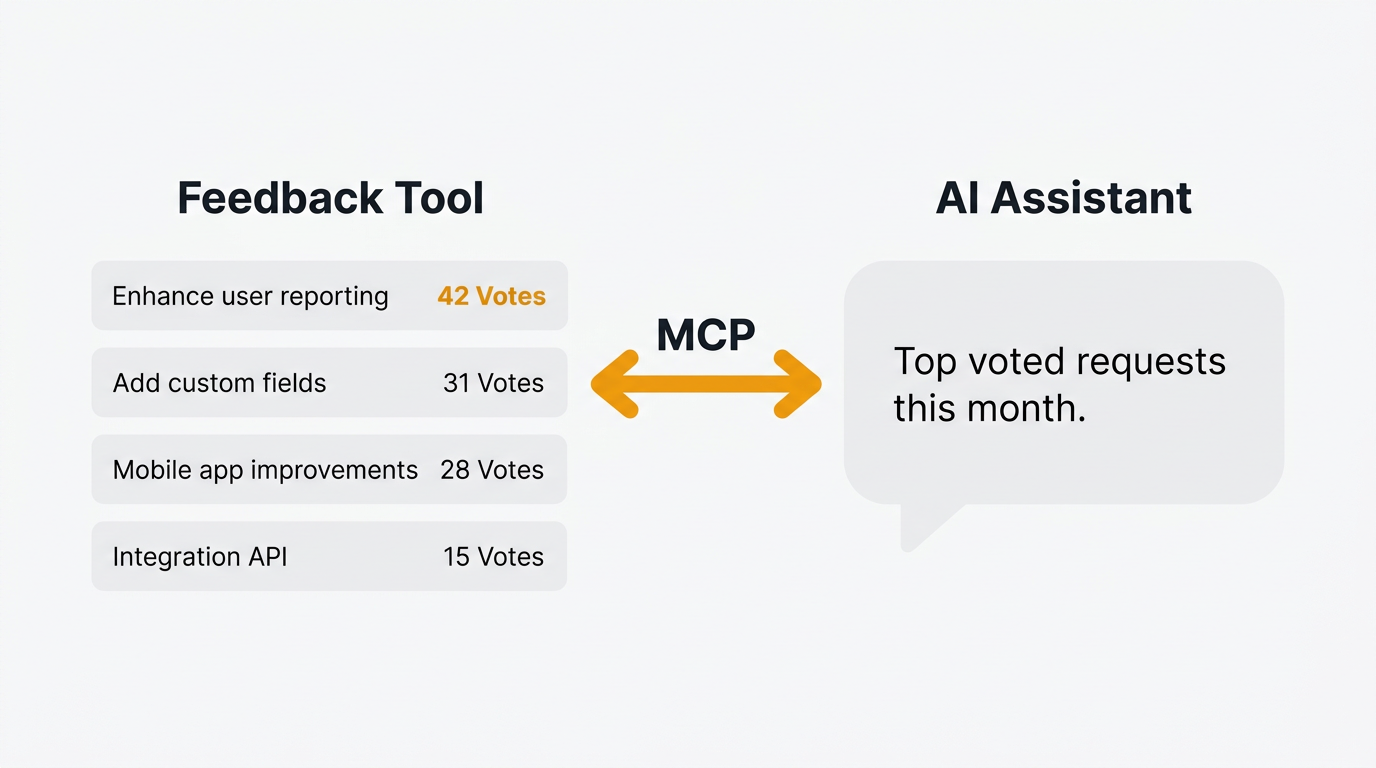
To connect a feedback tool to an AI assistant via MCP (Model Context Protocol), point your AI host at the tool's MCP server endpoint and authenticate with an API key or OAuth. Once connected, your AI can read feedback, update the roadmap, and draft release notes through natural language. Quackback ships a built-in MCP server that connects to Claude Code, Cursor, Claude Desktop, and VS Code in under two minutes.
MCP is an open standard that lets AI assistants connect to external tools. This guide walks through the setup for four AI hosts: Claude Code, Cursor, Claude Desktop, and VS Code. It covers Quackback's built-in MCP server in detail, with notes on connecting Canny and Productboard.
If you are new to MCP, start with What Is an MCP Server? for background on the protocol and why it matters for product teams.
What you will need
Before starting, make sure you have:
- A running Quackback instance. Use Quackback Cloud for a managed instance, or self-host via Docker or Railway. Either way, Quackback's MCP server is built in — it exposes tools and resources (boards, statuses, tags, roadmaps, members) at the
/api/mcpendpoint using Streamable HTTP transport. - An API key. Generate one from Settings > Developers in your Quackback admin panel. Keys use a
qb_prefix followed by 48 hex characters. Quackback also supports OAuth as an alternative. - An AI host that supports MCP. This guide covers Claude Code, Cursor, Claude Desktop, and VS Code. Windsurf also works — the configuration is similar.
- (Optional) A second feedback tool. Canny and Productboard have third-party community servers. See the comparison section below.
That is it. No SDKs to install. No custom code to write. Setup takes under two minutes for each host.
Setting up Quackback MCP in Claude Code
Claude Code is Anthropic's CLI tool for working with AI in the terminal. It supports MCP natively and is the fastest way to connect.
Step 1: Add the server
You can use the CLI command or a JSON config file. Both achieve the same result.
Option A: CLI command
claude mcp add --transport http --scope user quackback https://your-quackback-instance/api/mcpThat registers the Quackback MCP server at user scope over Streamable HTTP. Claude Code handles the OAuth flow automatically — it opens your browser, you log in to your Quackback instance, and the connection is established. The --scope user flag makes the server available across all your projects.
Option B: JSON config
Create or edit .mcp.json in your project root:
{
  "mcpServers": {
    "quackback": {
      "type": "http",
      "url": "https://your-quackback-instance/api/mcp"
    }
  }
}
To authenticate with an API key, add headers:
{
  "mcpServers": {
    "quackback": {
      "type": "http",
      "url": "https://your-quackback-instance/api/mcp",
      "headers": {
        "Authorization": "Bearer ${QUACKBACK_API_KEY}"
      }
    }
  }
}
Set the QUACKBACK_API_KEY environment variable to your API key (generated from Settings > Developers in the Quackback admin panel).
Step 2: Verify the connection
Start a new Claude Code session and type:
What MCP tools are available?
You should see a list of Quackback tools — search, triage, vote, comment, roadmap, changelog, and more. If the list appears, the connection is working.
Step 3: Run your first query
Try something simple:
List my feedback boards
Claude will call the Quackback MCP server, retrieve your boards, and display them with post counts and descriptions. If you see your boards listed, setup is complete.
See the MCP documentation for all available options.
Setting up Quackback MCP in Cursor
Cursor is an AI code editor that supports MCP through a JSON configuration file. Technical PMs and product engineers often prefer it because it combines coding and AI in one interface.
Step 1: Create or edit the MCP config
Open (or create) the file .cursor/mcp.json in your project root:
{
  "mcpServers": {
    "quackback": {
      "url": "https://your-quackback-instance/api/mcp",
      "headers": {
        "Authorization": "Bearer ${env:QUACKBACK_API_KEY}"
      }
    }
  }
}
Replace your-quackback-instance with your Quackback instance URL. Set the QUACKBACK_API_KEY environment variable to your API key (generated from Settings > Developers in the Quackback admin panel). Note that Cursor uses ${env:VAR_NAME} syntax for environment variables, not ${VAR_NAME}.
Step 2: Restart Cursor
Close and reopen Cursor, or reload the window. Cursor reads MCP configs on startup.
Step 3: Verify the connection
Open the Cursor AI chat and ask:
What feedback tools are connected?
Cursor should recognize the Quackback MCP server and list its available tools. You can then start querying your feedback data directly from the editor.
Setting up Quackback MCP in Claude Desktop
Claude Desktop is Anthropic's desktop application. It supports MCP through a JSON config file and is the most accessible option for non-technical team members.
Step 1: Open the config file
The config file location depends on your operating system:
- macOS:
~/Library/Application Support/Claude/claude_desktop_config.json - Windows:
%APPDATA%\Claude\claude_desktop_config.json
Create the file if it does not exist.
Step 2: Add the Quackback server
Claude Desktop does not support HTTP-based MCP servers natively. You need mcp-remote, a lightweight bridge that converts the Streamable HTTP connection into the stdio transport that Claude Desktop expects. It requires Node.js installed on your machine.
Add the following to the config file:
{
  "mcpServers": {
    "quackback": {
      "command": "npx",
      "args": [
        "mcp-remote@latest",
        "--http",
        "https://your-quackback-instance/api/mcp",
        "--header",
        "Authorization: Bearer qb_YOUR_API_KEY"
      ]
    }
  }
}
Replace your-quackback-instance with your Quackback instance URL and qb_YOUR_API_KEY with your actual API key from Settings > Developers.
Step 3: Restart Claude Desktop
Quit and reopen the app. Claude Desktop loads MCP configs on startup.
Step 4: Verify the connection
In a new conversation, ask:
List my feedback boards from Quackback
If you see your boards, the connection is live. Claude Desktop will now have access to your feedback data in every conversation.
Your Quackback admin panel at Settings > Developers > MCP Server also shows ready-to-copy configurations for each host. If you get stuck, start there.
Setting up Quackback MCP in VS Code
VS Code supports MCP servers through a .vscode/mcp.json file in your project root. This works with GitHub Copilot and other VS Code extensions that support the MCP protocol.
Step 1: Create or edit the MCP config
Create the file .vscode/mcp.json in your project root:
{
  "servers": {
    "quackback": {
      "type": "http",
      "url": "https://your-quackback-instance/api/mcp",
      "headers": {
        "Authorization": "Bearer ${input:quackback-api-key}"
      }
    }
  }
}
VS Code uses ${input:name} syntax to prompt you for the API key value when the server first connects. Replace your-quackback-instance with your Quackback instance URL.
Step 2: Reload VS Code
Reload the window or restart VS Code. The MCP server will connect on the next session.
Step 3: Verify the connection
Ask your AI assistant in VS Code:
What MCP tools are available from Quackback?
If the tools appear, setup is complete. Note that VS Code uses a servers key (not mcpServers) and supports the ${input:name} syntax for secure credential prompting.
10 things to try once connected
Once your MCP connection is working, here are ten practical prompts to try. These work in Claude Code, Cursor, Claude Desktop, and VS Code — any host connected to the Quackback MCP server.
1. Find the most popular requests
What are the most voted feature requests?
The AI queries your feedback boards, sorts by vote count, and returns a ranked list. Useful before sprint planning or quarterly reviews.
2. Summarize recent feedback
Summarize feedback from the last 7 days
Get a quick overview of what users are asking for, reporting, and discussing. The AI groups feedback by theme and highlights trends.
3. Search for a specific topic
Which feature requests mention "dark mode"?
Faster than manual keyword search because the AI can also catch related terms like "night mode," "dark theme," and "light/dark toggle."
4. Update your roadmap
Move "API v2" to "in progress" on the roadmap
The AI calls the roadmap management tool and updates the item status. Every linked feedback post gets updated automatically.
5. Draft a changelog entry
Draft a changelog entry for the features we shipped this sprint
The AI reads your recently completed roadmap items, pulls context from linked feedback posts, and writes a changelog entry ready for your review.
6. Filter by tag
What feedback has the "enterprise" tag?
If your team tags feedback by customer segment, the AI can filter and summarize by any tag.
7. Create a new feature request
Create a new feature request for SSO integration with a description explaining why enterprise customers need it
The AI creates the post with a title, description, and appropriate board placement. Saves you from switching context to the feedback tool.
8. Check vote counts
How many votes does the mobile app request have?
Quick data lookup without opening the dashboard.
9. Review your roadmap
List all roadmap items in the "planned" column
Get a snapshot of everything queued up. The AI returns items with vote counts, linked feedback, and status.
10. Draft a product update
Draft a weekly product update from this week's shipped items
The AI reviews what moved to "complete" on your roadmap, summarizes the changes, and drafts an update you can share with your team or users.
Each of these replaces a manual workflow that involves opening your feedback tool, navigating to the right view, reading through data, and writing a summary. With MCP, the AI does the navigation and summarization. You focus on decisions. Because the work runs in your own AI host, you use your own model subscription.
For more on what the Quackback MCP server can do, see the MCP feature page and the full MCP documentation.
Connecting other feedback tools
Quackback ships with a built-in MCP server, but it is not the only feedback tool with MCP support. Here is the current landscape.
Canny
A third-party MCP server is available at opensourceops/canny-mcp-server on GitHub. As of April 2026 it exposes 37 tools covering boards, posts, votes, comments, and tags. Because it is community-maintained (not built by Canny), it may lag behind Canny's official API when new features launch. For a closer look at the two tools, see Quackback vs Canny.
Productboard
A community-maintained MCP server exists, exposing 49 tools as of April 2026 covering features, notes, components, and releases. Like the Canny server, it is a third-party wrapper around the Productboard API. Check the MCP server directory for the latest version and compatibility notes. See Quackback vs Productboard for a feature comparison.
UserVoice
No MCP server is available as of April 2026. UserVoice has a REST API, so a community server could be built, but none exists today.
Nolt and Fider
No MCP servers are available for either tool. Both have limited APIs, which makes community server development harder.
A note on third-party servers
Third-party MCP servers are useful but come with trade-offs. They may not support every API endpoint. They may break when the vendor changes their API. And they depend on community maintainers to stay current. A built-in MCP server (like Quackback's) stays in sync with every product release because the same team maintains both.
If you are evaluating feedback tools and MCP access matters to your workflow, prioritize tools with official, built-in servers. For a broader comparison of feedback tools, see Best Customer Feedback Tools.
Common issues and troubleshooting
The AI does not see my MCP tools
This usually means the server did not start or the config file has a syntax error. Check:
- Claude Code: Run
claude mcp listto see registered servers. If Quackback is missing, re-runclaude mcp add --transport http --scope user quackback https://your-quackback-instance/api/mcpor check your.mcp.jsonfile. - Cursor: Confirm
.cursor/mcp.jsonis valid JSON. A missing comma or bracket will silently fail. Restart Cursor after editing. - Claude Desktop: Confirm the config file is in the correct location for your OS. Restart the app after any change.
Authentication errors
If the AI connects but returns permission errors:
- Verify your API key is correct and has not expired. Generate a new one from Settings > Developers if needed.
- Check that the
QUACKBACK_API_KEYenvironment variable is set in your shell (for Claude Code) or system environment (for Cursor and Claude Desktop). - If using OAuth with Claude Code, make sure your browser completed the login flow.
Slow responses or timeouts
MCP calls go through your Quackback instance. If responses are slow:
- Check your instance health. Self-hosted deployments on underpowered servers may struggle under load.
- Reduce the scope of your query. "Summarize all feedback from the last year" is slower than "Summarize feedback from the last 7 days."
- If you are on a slow network, consider whether the AI host is connecting to a remote instance or a local one.
Tools appear but do not work
If the tool list loads but individual calls fail, the issue is usually permissions. Your API key may have read-only access when the operation requires write access. Check your key permissions in the Quackback admin panel under Settings > Developers.
Try Quackback — open source with a managed cloud option. Start free. Get started | View on GitHub
Frequently asked questions
How long does it take to set up an MCP server for a feedback tool?
Most setups take under two minutes. Quackback's MCP server requires a CLI command or a few lines of JSON config in Claude Code, Cursor, Claude Desktop, or VS Code. No custom code or API wrappers needed.
Can I connect multiple MCP servers to the same AI assistant?
Yes. Claude Code, Cursor, and Claude Desktop all support multiple MCP servers simultaneously. You can connect your feedback tool, project tracker, and analytics platform in the same session and query across all of them.
Do I need to write code to use MCP with my feedback tool?
No. MCP servers install through configuration files or CLI commands. You interact with your feedback data through natural language in your AI assistant. The MCP server handles the API calls in the background.
Is the Quackback MCP server free?
Yes. The MCP server ships with every Quackback instance, including the free self-hosted version. There are no add-on fees for MCP access. Quackback is open source (AGPL-3.0) and free to deploy.
What if my feedback tool does not have an MCP server?
Some tools like UserVoice, Nolt, and Fider do not have MCP servers yet. Your options are to build a custom MCP server using the open protocol specification, request one from the vendor, or switch to a tool that supports MCP natively. For a comparison of tools with MCP support, see the connecting other feedback tools section above.

Authored by James Morton
Founder of Quackback. Building open-source feedback tools.
Try Quackback
The open-source feedback platform. Boards, voting, and roadmaps.
Get startedStar on GitHub305