
You have decided to leave Featurebase. Maybe per-seat pricing is no longer working as your team grows. Maybe you want self-hosting and full data ownership. Maybe you are paying for a bundled support inbox and help center you never use. Whatever the reason, the migration itself should not be the hard part.
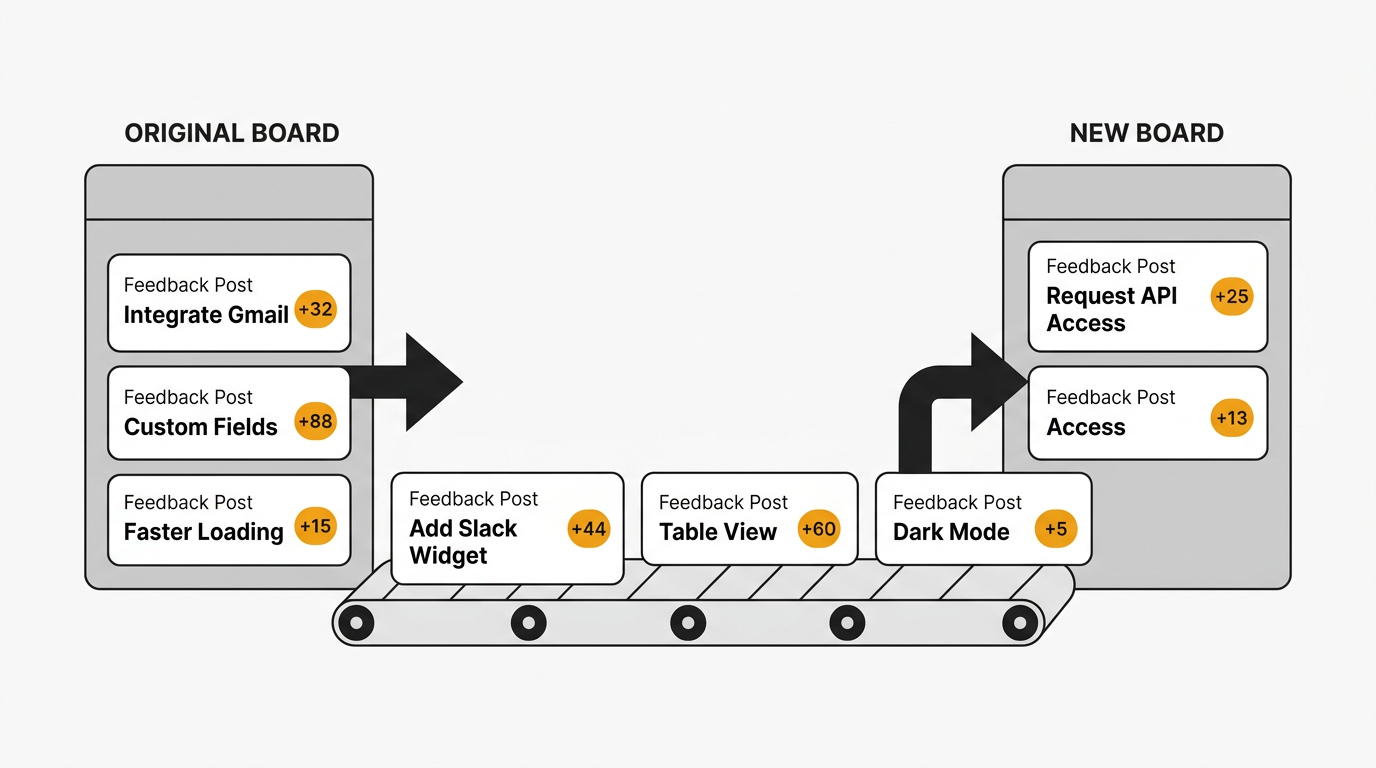
A feedback tool migration is simpler than migrating a database, a CRM, or an auth provider. Your core data is posts, votes, comments, users, and statuses. The process takes a few hours of preparation, an export, an import, and a week of communication.
This guide walks through the full process: what Featurebase lets you export, how to map your data, how to rebuild your roadmap and changelog, and how to communicate the switch to your users.
To migrate from Featurebase, export your feedback posts as CSV from Settings → Imports & Exports, then import them into your new tool. Posts, upvote counts, statuses, tags, and author emails come across cleanly. Voter lists export per post as names and emails. Rebuild your roadmap, changelog, and integrations in the new tool, then point your custom domain at it. Most teams finish in three to five days.
When it is time to leave Featurebase
Not every frustration justifies a migration. Switching tools has real costs — team retraining, user communication, and a brief period where your feedback workflow is disrupted. But some signals are clear.
Per-seat pricing is scaling against you. Featurebase uses per-seat pricing on every paid plan: Growth at $29/seat/mo, Professional at $59/seat/mo, and Enterprise at $99/seat/mo, all billed yearly. Every product manager, designer, engineer, and support agent who needs admin access adds to the bill. A ten-person team on Professional pays $590 per month before any AI usage. If your team is growing faster than your feedback volume, the pricing model is working against you. Pricing last verified May 2026. Vendors may change plans without notice.
You are paying for scope you do not use. Featurebase started as a feedback board and expanded into a support inbox, a help center, and an AI agent called Fibi that charges $0.49 per resolution. The breadth is real, but if you only want feedback collection, voting, roadmaps, and changelogs, you are subscribing to a support platform to get a feedback board. A focused tool costs less and stays out of your way.
You need self-hosting or data ownership. Featurebase is a closed-source SaaS product with no self-hosting option. If your security team requires data to stay on your infrastructure, or your compliance framework mandates it, Featurebase is not an option regardless of features.
SSO is locked behind Enterprise. Admin single sign-on is only available on Featurebase's $99/seat/mo Enterprise tier. If your organization requires SSO, that requirement alone can triple your per-seat cost.
If you are still weighing the decision, our Quackback vs Featurebase comparison lays out the feature and pricing differences side by side.
What you can export from Featurebase
Featurebase provides data export through the admin dashboard, with richer migrations available through their API.
Dashboard CSV export
From Settings → Imports & Exports, you can download your feedback posts as a CSV file. The export typically completes in under a minute and includes roughly 14 standard fields per post:
- Post title and content
- Upvote count (the aggregate number, not the individual voter list)
- Creation date
- Author details — name, email, user ID, and picture URL
- Tags
- Board name
- Status
- ETA and associated MRR
- Custom field values
- Linked issue IDs and URLs if you have connected an issue tracker like Jira
This is the easiest path for most migrations. No code required.
Exporting voters
The post CSV gives you the upvote count, but not who voted. To capture voter lists, open a post, select View upvoters in the right panel, and use Copy data to copy each post's upvoters as names and emails. This is a per-post operation, so for a board with many posts you will either script around it or rely on an API-based import that pulls voters automatically.
API migration
For complete migrations, Featurebase's own documentation describes an API-based import that captures posts, comments, voters, user data, and changelogs. Featurebase offers this as a paid-plan, support-assisted service when teams move to Featurebase. The same principle applies when you move away: an API export gives you the richest data, including:
- Full comment threads
- Per-post voter records (who voted, not just how many)
- Changelog entries
- Custom fields and metadata
If your destination tool exposes an API, scripting against the Featurebase API is the path that preserves the most signal. Quackback does not ship a Featurebase-specific adapter, so this route means writing a script that reads the Featurebase API and creates records through Quackback's API.
What you cannot easily take with you
Some data does not migrate as a feedback record:
- Support inbox conversations — if you used Featurebase's help desk, those tickets stay behind
- Help center articles — knowledge base content is a separate export and may not map to a feedback tool at all
- Fibi AI resolution history — support automation logs stay in Featurebase
- Analytics and engagement metrics — page views and funnel data do not come across
- Integration and webhook configurations — these need to be recreated in your new tool
Migration checklist
Step 1: Audit your current data
Before exporting anything, understand what you have.
- How many posts? Hundreds are trivial. Thousands may justify the API route.
- How many active voters? These are the people you need to communicate with.
- What statuses do you use? Document your Featurebase statuses (Open, Under Review, Planned, In Progress, Complete, and any custom ones) so you can map them.
- What boards, categories, and tags exist? List them. You will recreate or map each.
- Are you using the support inbox or help center? Decide what happens to that content separately — it does not belong in a feedback migration.
Step 2: Set up your new tool
Create your account or deploy your instance, then configure the basics before importing data:
- Create boards that match your Featurebase board structure, or take the opportunity to restructure
- Set up statuses that map to your Featurebase statuses
- Recreate categories and tags
- Add your team members and set permissions
- Configure your feedback widget or portal so it is ready for users after the switch
Step 3: Export from Featurebase
Run your CSV export from Settings → Imports & Exports. If you need voters or comment threads, also export upvoter lists per post or use the API. Verify the data before proceeding:
- Spot-check that post counts match what you see in Featurebase
- Confirm that upvote counts look correct on your most popular posts
- Check that author emails are included — email is the join key for re-associating identities
- Note your status names exactly as they appear
Step 4: Import into your new tool
How this works depends on your destination.
Importing into Quackback: Quackback's CSV import reads a standard set of columns — title, content, status, tags, board, author name, author email, vote count, and creation date — and matches posts and votes to users by email. There is no dedicated Featurebase adapter, so you map your Featurebase export columns to those fields once, then import posts in a single pass. Pay attention to:
- Vote mapping — Featurebase exports an aggregate "upvote count" column. Map it to Quackback's
vote_countfield. Individual voter records need the per-post upvoter export or an API-based import. - Status mapping — names differ between tools. Map "Under Review" or "Planned" to their equivalents.
- User matching — email is the join key for attributing posts and votes to people.
- Date formats — keep creation dates so historical context is preserved.
If your new tool only has an API: Write a migration script that reads your export and creates records through the destination API. More work, but the most control over how voters and comments map.
Step 5: Verify the import
After importing, check:
- Post count — does it match your Featurebase export?
- Vote counts — pick five popular posts and verify the totals match
- Statuses — confirm Featurebase statuses landed on the correct new statuses
- Comments — if you imported them, check threading and authors
- User profiles — spot-check that emails and names came through
Step 6: Rebuild your roadmap and changelog
Featurebase ties your roadmap and changelog to its post statuses. Your new tool does the same, but the structure needs to be rebuilt rather than imported.
- Roadmap: Once your posts carry the right statuses, your public roadmap populates from them. Verify that Planned and In Progress items appear in the columns you expect.
- Changelog: Featurebase changelog entries can export through the API. Recreate your most recent and most-visited entries in your new tool's changelog so users who relied on it still find a history. Older entries can be archived rather than recreated one by one.
Step 7: Update your integrations
If you had Featurebase connected to other tools, recreate those connections:
- Slack — reconnect to your feedback channels. See collecting feedback in Slack.
- Jira or Linear — re-link issue tracking. If your CSV included linked issue IDs, use them to re-establish the connections.
- Webhooks — point any custom webhooks at your new tool's endpoints.
- Widget embed — replace the Featurebase widget script in your product with your new tool's widget.
Step 8: Communicate the switch
This is the step most teams skip, and it causes the most friction.
For your team: Send a brief message explaining what changed, where the new feedback tool lives, and how the workflow differs. Do this before the switch, not after.
For your users: If you have a public-facing feedback portal, your users need to know where to go. Options:
- Email active feedback contributors — anyone who posted or voted in the last 90 days
- Post a changelog entry announcing the new feedback portal
- Update links in your product, help docs, and website
Keep the message simple: "We moved our feedback board. Your existing posts and votes have been migrated. Here is where to submit new feedback."
URL redirects
Featurebase boards usually live at a subdomain or a custom domain you control. If you used a custom domain like feedback.yourcompany.com with a CNAME to Featurebase, you can repoint that DNS record to your new tool. Users keep the same URL and never notice the backend change. If your board was on a Featurebase subdomain you do not control, update all internal links in your product, docs, and website, and add a redirect page at any old URL you do control.
Timeline
A realistic migration timeline for a team with under 5,000 posts:
| Day | Action |
|---|---|
| Day 1 | Audit data, set up new tool, configure boards and statuses |
| Day 2 | Export from Featurebase, import into new tool, verify data |
| Day 3 | Rebuild roadmap and changelog, update integrations, replace widget embed |
| Day 4 | Communicate to team and users, point custom domain, go live |
| Day 5-7 | Monitor for issues, answer questions, verify nothing was missed |
For larger datasets or heavy use of comments and voter lists, add a day or two. But this is not a month-long project. Most teams complete the migration in under a week.
After the migration
Keep your Featurebase account active for 30 days. Do not cancel immediately. You may need to reference historical data, re-export something that did not map cleanly, or handle a user who missed the announcement.
Monitor your new feedback volume. A temporary dip in submissions is normal after any tool switch. If volume does not recover within two weeks, check that your widget is working, your portal is discoverable, and your communication reached active users.
Clean up stale data. A migration is a good opportunity to close old posts that are no longer relevant. If a feature request has been open for two years with three votes, archive it to keep your board focused.
Try Quackback — open source with a managed cloud option. Start free. Get started | View on GitHub
Frequently asked questions
Can I export my data from Featurebase?
Yes. Featurebase exports feedback posts as a CSV from Settings → Imports & Exports, including titles, content, upvote counts, statuses, tags, boards, and author emails. Voter lists export per post as names and emails. Comments and changelogs are available through the API.
Will I lose votes if I migrate from Featurebase?
No. Featurebase's CSV export includes an aggregate upvote count per post, which maps directly to your new tool's vote field. If you need individual voter records, export upvoters per post or use the API. Votes re-associate to users by email.
How long does a Featurebase migration take?
Most teams finish in three to five days, including communication. The actual export and import takes a few hours. The rest is configuring boards and statuses, rebuilding your roadmap and changelog, updating integrations, and notifying users.
Does migrating from Featurebase include my support inbox and help center?
No. A feedback migration covers posts, votes, comments, and statuses. Featurebase's support inbox conversations and help center articles are separate products and stay behind. Export those independently if you need them, or move them to a dedicated support tool.
Can I migrate from Featurebase for free?
Yes. Featurebase's CSV export is available without extra fees, and the cost of migration is mainly your team's time. Destination tools like Quackback are open source and free to self-host, so you pay nothing for the software itself.

Authored by James Morton
Founder of Quackback. Building open-source feedback tools.
Try Quackback
The open-source feedback platform. Boards, voting, and roadmaps.
Get startedStar on GitHub305