 Quackback
On this page
You have decided to leave UserVoice. Maybe the $16,000 annual minimum no longer matches what you use. Maybe you need a public roadmap and changelog UserVoice does not offer. Maybe you want to stop renewing a contract you negotiate through sales every year. Whatever the reason, the migration itself should not be the hard part.
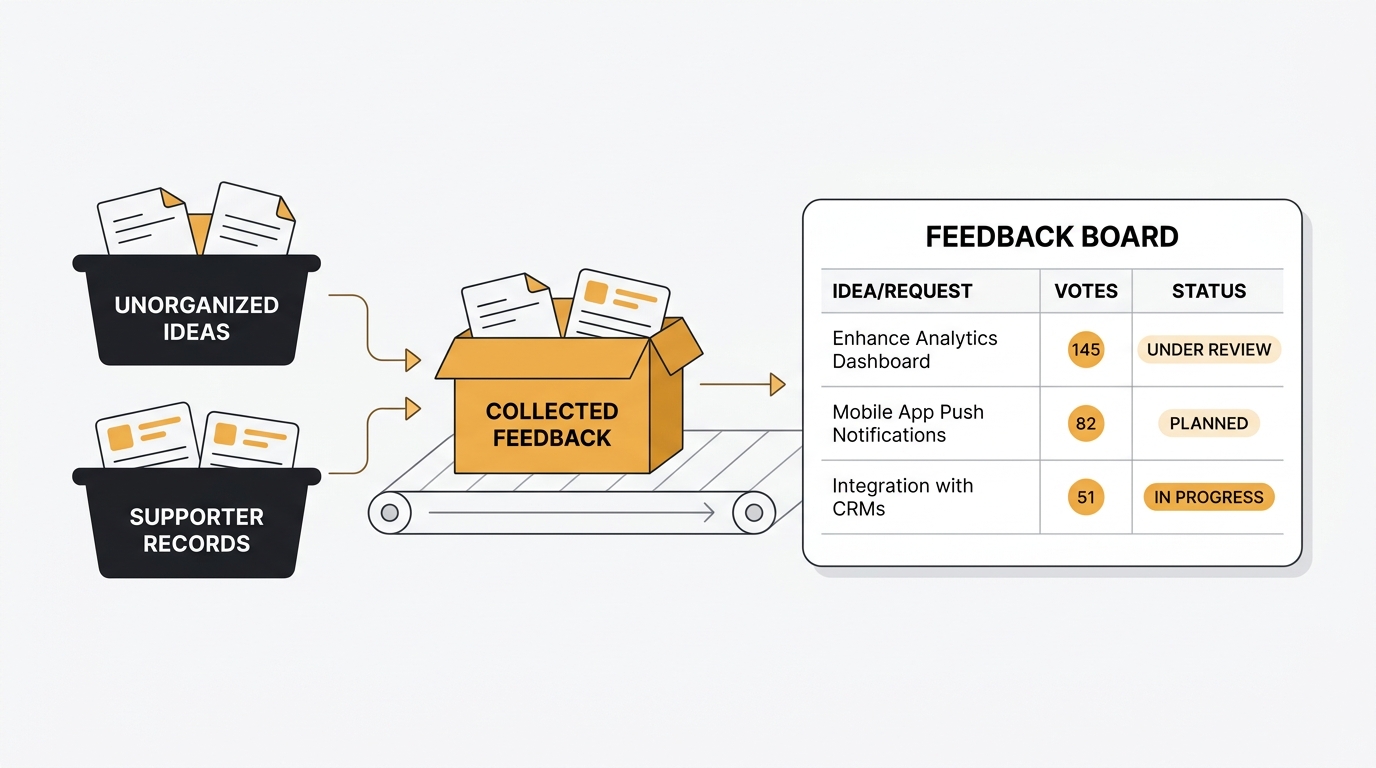
Migrating from UserVoice means exporting your ideas and supporters to CSV, mapping them to a feedback board, and rebuilding the pieces UserVoice handles outside the export, like SSO and a public roadmap. The data move takes a few hours. The bigger lever is timing the switch against your annual contract so you do not pay for an empty seat.
The data itself is simple. Your core records are ideas, supporters (votes), comments, statuses, and the users behind them. UserVoice exports most of this to CSV or xlsx. The work that takes planning is everything around the export: preserving supporter identity, reconnecting SSO, communicating the move, and timing it against your auto-renewal so you are not double-paying.
This guide walks through the full process, with the contract timing that matters most for an enterprise tool like UserVoice.
When it is time to leave UserVoice
Not every frustration justifies a migration. Switching tools has real costs — team retraining, user communication, and a brief period where your feedback workflow is disrupted. But some signals are clear.
The price no longer matches the use. UserVoice starts at $16,000 per year (~$1,333/mo) on an annual contract, with pricing scaled to your monthly feedback volume and integrations. There is no monthly option and no self-serve signup. If your team mainly uses voting boards and status updates, you are paying enterprise rates for features you never touch. Our UserVoice pricing breakdown walks through what each commitment level costs.
Pricing last verified May 2026. Vendors may change plans without notice.
You need a public roadmap and changelog. UserVoice does not let you publish your roadmap on your UserVoice site, and it has no native changelog. Idea statuses are visible to supporters, but roadmap statuses are not public. If you want a single place where users see what is planned and what shipped, you will end up bolting on a second tool.
You want predictable, self-serve pricing. Every UserVoice renewal goes through a "Talk to an Expert" conversation. Teams that want to add a board, change plans, or cancel without a sales cycle find the model heavy for what they need.
You want source code access or self-hosting. UserVoice is a closed-source hosted SaaS with no on-premises deployment. If your security team requires data to stay on your infrastructure, UserVoice is not an option regardless of features.
If you are still evaluating where to go, our UserVoice alternatives comparison covers seven options with honest pros and cons.
What you can export from UserVoice
UserVoice provides data export through the admin dashboard. Most of what you need comes out as a structured file.
Idea export
From the Ideas & Activity area, the Export Activity option produces a CSV or xlsx file. You choose between two types:
- Regular export (Ideas only) — idea ID, title, body, status, supporter count, comment count, and related fields
- Analysis export (Ideas & Voters) — ideas plus the supporters attached to each one, which is what you need to preserve vote-to-user relationships
You can filter by date range: the last 30, 60, 90, or 365 days, or a custom window. For a full migration, export everything rather than a recent slice.
User export
A separate Users export lists your users along with the total number of suggestions and requests each one submitted. Combined with the analysis export, this gives you the email addresses you need to re-associate supporter identity in your new tool.
What the import format tells you
UserVoice's own import format is a useful map of which fields it stores, because you can export the same shape. Voter and feedback imports key on user.email_address (required), suggestion.title or suggestion.id, link_suggestion_user.is_subscribed, and request.body. Optional fields include user.name and link_suggestion_user.created_timestamp in ISO 8601 UTC (2016-01-01T00:00:00Z). Email is the join key for supporter identity. Imports cap at 10,000 rows per file, so large accounts come across in batches.
What you cannot export cleanly
Some data does not travel as one neat file:
- Users tied to all of their ideas, votes, and comments in a single export — UserVoice does not offer one combined export, so you reassemble this from the analysis export and the users export
- Internal notes and admin-only fields may not appear in standard exports
- NLP analysis, themes, and engagement metrics — the derived analytics stay in UserVoice
- CRM-linked revenue data — account ARR pulled from Salesforce or HubSpot lives in the integration, not the export
- SSO and integration configuration — these are recreated, not exported
Migration checklist
Step 1: Audit your current data
Before exporting anything, understand what you have.
- How many ideas? Hundreds are trivial. Tens of thousands cross the 10,000-row import cap and need batching.
- How many supporters? These are the people you need to communicate with.
- What statuses do you use? Map UserVoice idea statuses to your new tool's status model (typically Open, Under Review, Planned, In Progress, Complete, Closed).
- What categories and forums exist? Document them. You will recreate or map them.
- Who authenticates via SSO? Note your identity provider so you can reconnect it.
Step 2: Set up your new tool
Create your account and configure the basics before importing data:
- Create boards that match your UserVoice forum structure, or restructure intentionally
- Set up statuses that map to your UserVoice statuses
- Create categories and tags
- Configure team members and permissions
- Set up your widget or portal so it is ready for users after the switch
Step 3: Export from UserVoice
Run the analysis export (Ideas & Voters) and the users export from the admin dashboard. Verify the data before proceeding:
- Spot-check that idea counts match what you see in UserVoice
- Confirm supporters are attached to the correct ideas
- Check that user email addresses are present, since email is how supporter identity re-associates
- Note the date format so timestamps map correctly
Step 4: Import into your new tool
How this works depends on your destination tool.
If your new tool has a UserVoice importer or import guide: Use it. A purpose-built path handles field mapping, status translation, and user matching for you.
Quackback's import and export tooling maps UserVoice fields directly — ideas become posts, supporters become votes keyed on email, and statuses translate to your board's status model. There is a step-by-step migration guide for the field mapping.
If your new tool accepts CSV imports: Map your UserVoice columns to the tool's expected format. Pay attention to:
- Date formats (UserVoice uses ISO 8601 UTC)
- Status mapping (names differ between tools)
- User matching (email is the join key)
- Row limits (split files larger than 10,000 rows)
If your new tool only has an API: Write a migration script that reads your UserVoice export and creates records through the destination API. This is more work but gives you full control over how data maps.
Step 5: Verify the import
After importing, check:
- Idea count — does it match your UserVoice export?
- Vote counts — pick five popular ideas and verify supporter totals
- Supporter identity — spot-check that users matched on email rather than creating duplicates
- Statuses — verify UserVoice statuses mapped to the correct new statuses
- Comments — check that authors and timestamps came through
Step 6: Preserve SSO and supporter identity
This is where UserVoice migrations differ from a simple board switch.
UserVoice supports SAML SSO with providers like Okta, Microsoft Entra ID, OneLogin, and ADFS, plus OIDC and token-based JWT sign-in, on plans that include the feature. The attributes it passes are an email (required) and an optional display name and GUID.
Because supporter records key on email, the identity you re-associate in your new tool should use the same email your SSO provider asserts. Configure SSO in the new tool against the same identity provider, mapping the email claim consistently. Do this before you invite users back, so a returning supporter signs in and lands on their existing posts and votes rather than a fresh account.
Quackback supports team SSO via OIDC with providers like Okta, Microsoft Entra ID, Google Workspace, OneLogin, and Auth0. If your UserVoice SSO ran on one of those, point Quackback at the same OIDC provider and map the email claim consistently so sign-in stays unchanged. UserVoice's SAML-only setups need an OIDC connection at the same identity provider instead.
Step 7: Reconnect integrations
If you had UserVoice connected to other tools, recreate those connections:
- Issue trackers — re-link Jira, Linear, or GitHub so feedback flows to engineering. A tool with two-way sync keeps statuses aligned automatically.
- Support tools — reconnect Intercom or Zendesk
- CRM — if you relied on Salesforce or HubSpot for revenue context, decide whether you still need it; most teams find they do not
- Slack — reconnect your Slack feedback channels
- Widget embed — replace the UserVoice widget script in your product with your new tool's widget
Step 8: Communicate the switch
This is the step most teams skip, and it causes the most friction.
For your team: Send a brief message explaining what changed, where to find the new feedback tool, and how the workflow differs. Do this before the switch, not after.
For your users: If you have a public-facing portal, your supporters need to know where to go. Options:
- Email active supporters (anyone who posted, voted, or commented in the last 90 days)
- Post a changelog entry announcing the new feedback portal
- Update links in your product, help docs, and website
- Add a notice on your old UserVoice subdomain if you can still edit it
Keep the message simple: "We moved our feedback portal to [new URL]. Your existing ideas and votes have been migrated. Here is where to submit new feedback."
Timing the switch against your contract
UserVoice is an annual contract, so timing matters more here than with a month-to-month tool.
Know your renewal date. Early cancellation is generally not available unless it was negotiated into your agreement. In practice, you wait until the renewal date and give notice. Find that date and the notice period in your contract before you plan anything.
Give notice early. Auto-renewal terms vary by contract. Send your non-renewal notice in writing well ahead of the deadline so a renewal does not lock you into another year.
Run the migration before renewal, not after. The cleanest plan is to export, import, and verify in the new tool while UserVoice is still live, then switch users over and let the UserVoice contract lapse at renewal. You keep a working fallback during the move and avoid paying for two tools longer than a short overlap.
Do not delete anything until the term ends. Keep UserVoice accessible through the end of your paid term. You may need to reference historical data or re-export something that did not map cleanly the first time.
URL redirects
If your portal lived at yourcompany.uservoice.com or a custom domain, plan your links:
- Update all internal links in your product, docs, and website
- If you used a custom domain with a CNAME to UserVoice, repoint that DNS record to your new tool once you are live
- Add a notice or redirect page at the old address if you control it
Rebuilding the roadmap and changelog
UserVoice does not publish a roadmap on your site and has no native changelog, so this is often an upgrade rather than a like-for-like rebuild.
- Public roadmap — group your imported ideas into planned, in progress, and shipped columns. A public roadmap gives supporters a live view of what you are working on, which UserVoice could not show natively.
- Changelog — when you ship something, post it and notify the people who voted. A changelog with voter notifications closes the loop automatically, replacing the manual status updates you sent in UserVoice.
This is the part where most teams find the move was worth it beyond cost: the loop from request to roadmap to shipped announcement becomes one connected flow.
Timeline
A realistic timeline for a team with under 10,000 ideas:
| Day | Action |
|---|---|
| Day 1 | Audit data, set up new tool, configure boards and statuses |
| Day 2 | Export from UserVoice, import into new tool, verify data |
| Day 3 | Configure SSO against the same identity provider, reconnect integrations, replace widget |
| Day 4 | Communicate to team and users, go live |
| Day 5-7 | Monitor for issues, answer questions, verify nothing was missed |
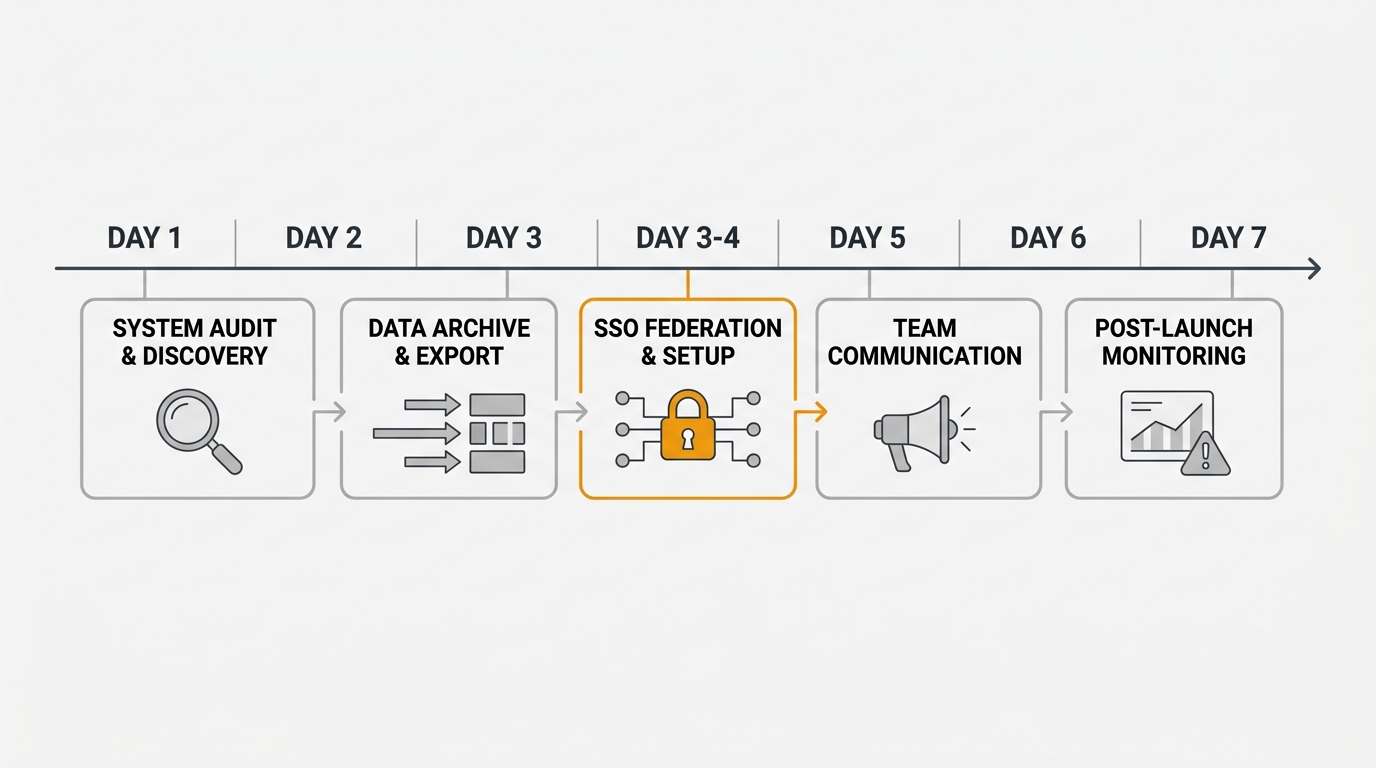
Larger accounts that cross the 10,000-row import cap add a day or two for batching, and SSO setup can add time if your identity provider needs a security review. But this is not a month-long project. The data move is the fast part. Contract timing is what stretches the calendar, not the migration itself.
After the migration
Keep UserVoice live through your contract term. Do not let access lapse before you have verified everything imported correctly and your users have moved over.
Monitor your new feedback volume. A temporary dip in submissions is normal after any tool switch. If volume does not recover within two weeks, check that your widget works, your portal is discoverable, and your communication reached active supporters.
Clean up stale data. A migration is a good time to close ideas that are no longer relevant. If a request has sat for two years with three supporters, archive it to keep the board focused.
For the full side-by-side on what changes, see the Quackback vs UserVoice comparison.
Try Quackback — open source with a managed cloud option. Start free. Get started | View on GitHub
Frequently asked questions
Can I export my data from UserVoice?
Yes. UserVoice exports ideas and supporters to CSV or xlsx from the admin dashboard. The analysis export includes ideas with their voters, and a separate users export lists users with their submission counts. Derived analytics, NLP themes, and CRM revenue data do not export.
Will I lose votes when I migrate from UserVoice?
No, if supporters are matched on email. UserVoice keys supporter records to user.email_address, so as long as you preserve emails in the import and use the same email in your new tool's SSO, votes re-associate with the correct users instead of creating duplicates.
How do I keep SSO working after migrating from UserVoice?
Configure SSO in your new tool against the same identity provider UserVoice used. UserVoice supports SAML with Okta, Entra ID, OneLogin, and ADFS, plus OIDC. Quackback supports team SSO via OIDC, so connecting the same provider over OIDC and mapping the email claim keeps sign-in unchanged for returning supporters.
When should I cancel my UserVoice contract?
Run the full migration before your renewal date, then let the annual contract lapse. Early cancellation is generally unavailable unless negotiated, so send your non-renewal notice in writing ahead of the deadline and keep UserVoice live through the paid term as a fallback.
Does UserVoice have a changelog I can migrate?
No. UserVoice has no native changelog and does not publish your roadmap on its site. You rebuild both in your new tool. A changelog with voter notifications and a public roadmap replace the manual status updates UserVoice relied on, usually as an upgrade.

Written by James Morton. Founder of Quackback, the open-source platform for customer feedback and support.
Quackback is open-source software for customer feedback and support
Feedback boards, a public roadmap, a changelog and a support inbox in one place. Free to start, no card needed.
Keep reading
How to Migrate from Featurebase: A Step-by-Step Guide (2026)
A practical guide to migrating from Featurebase. What to export, how to map posts, votes, and statuses, and how to rebuild your roadmap and changelog.
How to Migrate from Productboard: A Step-by-Step Guide (2026)
A step-by-step guide to migrating from Productboard. What to export, how to map insights and features to a board and roadmap, and how to time the switch.
How to Migrate from Canny: A Step-by-Step Guide (2026)
A practical guide to migrating from Canny to another feedback tool. What to export, how to map your data, and how to communicate the switch to your users.